
How to resolve the error when opening a downloaded Word file on Windows 11?
When using Windows 11 (or newer Windows systems), have you ever encountered a situation where a Word document (or PPT, Excel, or other Office files) downloaded from the internet displays an error message box when you double-click to open it?

Rendering...
## Introduction

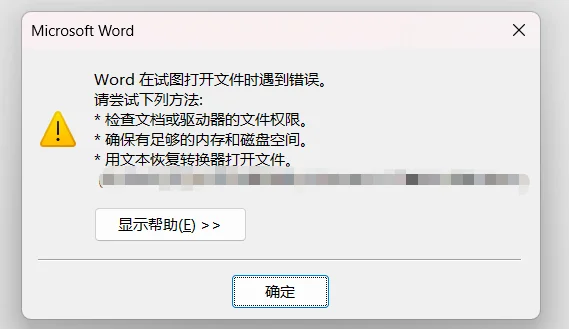
When using Windows 11 (or newer Windows systems), have you ever encountered this situation: you downloaded a Word document (or PPT, Excel, and other Office files) from the internet, but when double-clicking to open it, an error message box pops up with content similar to the following:

> **Word encountered an error trying to open the file. Please try the following methods:**
> * Check file permissions for the document or drive.
> * Ensure sufficient memory and disk space are available.
> * Open the file using a Text Recovery Converter.

Many users may feel confused by this prompt, as file permissions, memory, or disk space are usually not the actual issues. In reality, this is often caused by Windows system restrictions applied to files downloaded from the internet for security purposes.

## Why Does This Error Occur?

To protect users from potential malicious files, Windows adds a special marker called "Mark of the Web" (MOTW) to files downloaded from the internet. This marker informs the system that the file originates from a partially untrusted zone (e.g., the internet zone).

When attempting to open Office files with this marker, Office applications will either open them in "Protected View" mode or, in some cases, completely block them and display the error message mentioned above. This mechanism aims to prevent malicious code from executing without your knowledge, thereby enhancing your computer's security.

## Solution: Unlock the File

Resolving this issue is very simple - you just need to manually unlock the file. Here are the detailed steps:

### Step 1: Locate and Right-Click the Problem File

First, navigate to the Word (or PPT, Excel) file you downloaded that cannot be opened normally.

### Step 2: Open File "Properties"

**Right-click** on the file icon, then select "**Properties**" from the bottom of the context menu that appears.

### Step 3: Find the "Unblock" Option

In the opened "Properties" window, switch to the "**General**" tab.

At the bottom of the "General" tab, you'll see a "Security" section. If the file is locked by the system, you'll find a message like: "This file came from the Internet and might have been blocked to help protect your computer."

Next to this message, there will be a checkbox labeled "**Unblock**".

### Step 4: Check "Unblock" and Apply

**Check** the "Unblock" checkbox.

Then click the "**Apply**" button at the bottom of the window, followed by the "**OK**" button to save changes and close the Properties window.

### Step 5: Reopen the File

Now, try double-clicking the Word file again. You'll find it opens normally without displaying the previous error message.

## Additional Tips and Notes

*   **Batch Unlocking:** If you downloaded a compressed package (like a ZIP file) containing multiple Office files, it's recommended to "Unblock" the entire compressed file first before extracting. This way, the extracted files usually inherit the unlocked status.
*   **Security Considerations:** While the "Unblock" operation solves the issue, ensure you trust the file's source. Only perform this operation after confirming the file is safe to avoid potential security risks.
*   **Option Not Visible?** If you don't see the "Unblock" option in the file properties, this might mean the file is already unlocked, or your system security policy (e.g., in enterprise environments) is preventing the option from displaying. In the latter case, you may need to contact your IT administrator for assistance.
Comments
Please login to view and post comments
Go to Login